
How to Save a Web Page as a Searchable PDF
Save any web page as a PDF whose text stays selectable and searchable and whose links stay clickable - in any language.
A PDF is the format people trust for keeping a faithful copy of a page - to file, to email, to attach to a case or a report. But not all PDFs are equal. The useful kind has text you can select, search, and copy, and links you can still click. The other kind is just a picture of the page, frozen and dead.
Method 1: The browser's Print to PDF
Chrome's Ctrl/Cmd + P → Save as PDF is the obvious starting point, and for a short, simple page it's fine. The catches show up on real pages:
- Page breaks fall mid-content, slicing tables, images, and paragraphs across two pages.
- Print stylesheets hide things. Many sites strip images, sidebars, or whole sections from their print view, so your PDF is missing content that was on screen.
- Long pages get awkward. Sticky headers can repeat, and floating widgets can land in the middle of the document.
It often works - but you don't fully control what comes out, and you can't count on it.
Method 2: A clean searchable PDF with Web Snapper
Web Snapper is a Chrome extension that renders the full page into a PDF where the text layer is preserved. That means the text stays selectable and searchable, links stay clickable, and the layout reflects the page you actually saw.
- Open the page you want to keep.
- Click the Web Snapper icon.
- Choose Searchable PDF.
- Pick a paper size if you want - A4, Letter, or fit-to-content, portrait or landscape.
- Save the PDF to your Downloads folder.
Because the text is real text and not a flattened image, you can Ctrl/Cmd + F inside the PDF later to find anything - and that works in any language, including Chinese, Arabic, and Hindi, not just Latin scripts.
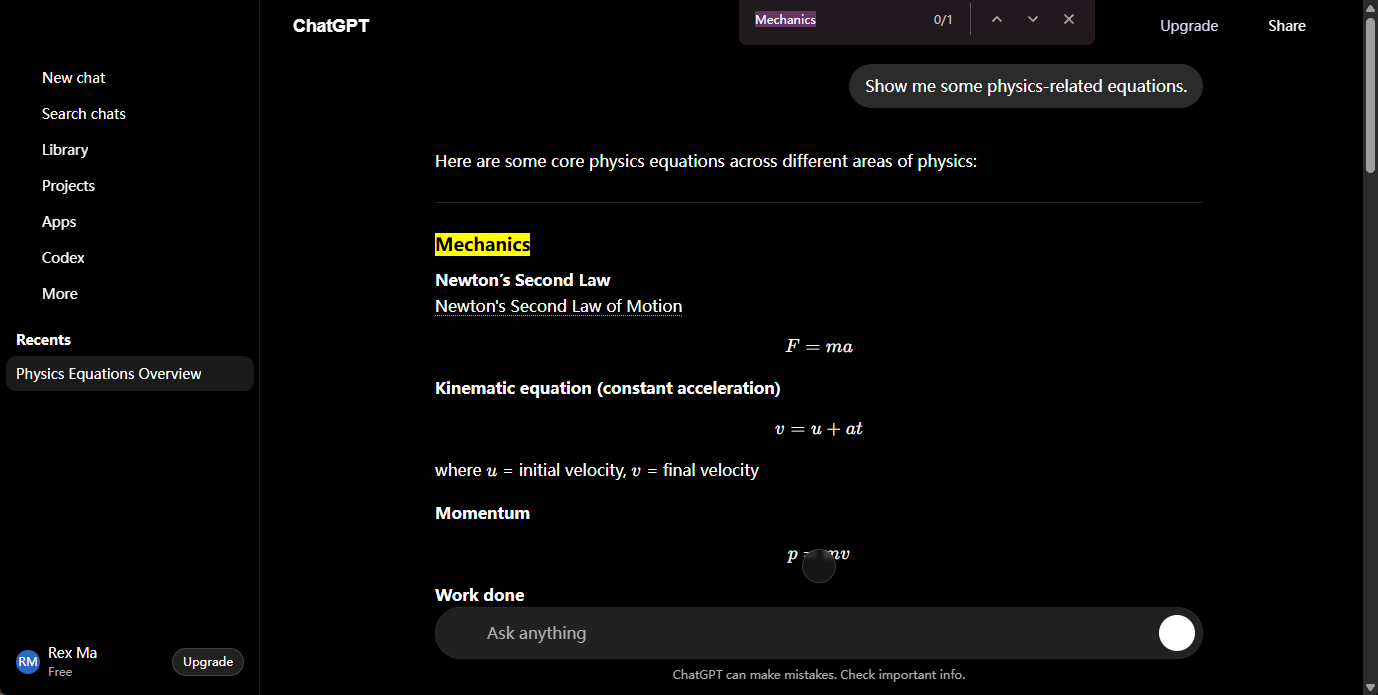
Why searchable beats a screenshot PDF
- Findable later. Selectable text means your operating system and PDF reader can search inside the file, so it surfaces when you look for a phrase months from now.
- Quotable. You can copy a sentence straight out instead of retyping it from an image.
- Links survive. References and citations stay clickable rather than becoming dead underlined text.
Highlights export as real annotations
If you mark up the page before saving - using Web Snapper's on-page editor to highlight passages - those highlights export as native, editable PDF annotations, not painted-on color. Anyone opening the PDF in a standard reader can see and adjust them.
It all runs locally
PDF generation happens entirely in your browser. The page isn't uploaded to a conversion service, there's no account, and the finished file goes straight to your Downloads. That matters when the page contains anything private.
For paper sizes, the text layer, and annotation export in detail, see Searchable PDF.