
How to Save a Web Page for Offline Reading
Save a self-contained, single-file HTML snapshot of any web page that opens offline years later - images, styles, and fonts included.
Web pages disappear. Articles get edited, sites go down, links rot, and the thing you wanted to reference is suddenly a 404. The fix is to keep your own copy - a snapshot that opens later with no internet connection and no dependence on the original site.
Why bookmarks and "Save As" fall short
- Bookmarks point at the live page. When the page changes or vanishes, the bookmark goes with it. You saved a link, not the content.
- Browser "Save Page As" (complete) usually drops a
.htmlfile plus a folder of assets next to it. Move or rename one without the other and the page breaks. It's fragile and easy to lose track of. - Read-it-later services keep your copy on someone else's servers - subject to their account rules, outages, and shutdowns.
The durable way: a single-file HTML snapshot
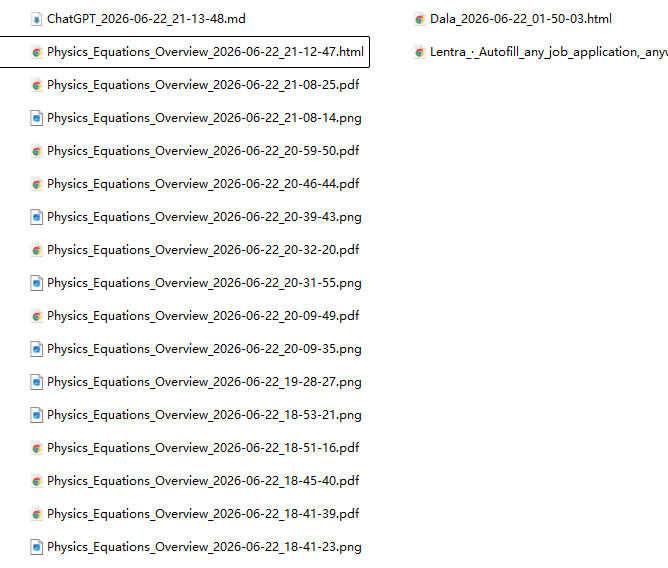
Web Snapper can save a page as a single, self-contained HTML file. Images, styles, and fonts are inlined directly into that one file, so there's no companion folder and nothing to fetch from the network. Open it in any browser, years later, with no connection, and it looks like it did the day you saved it.
- Open the page you want to keep.
- Click the Web Snapper icon.
- Choose Single-file HTML.
- Save the
.htmlfile to your Downloads folder.
That one file is the archive. Move it, back it up, email it, or drop it in cloud storage - it stays self-contained.
When single-file HTML is the right choice
- You want it to look like the original. Unlike a stripped Markdown export, the HTML snapshot preserves the page's real layout and design.
- You need true durability. No external assets means nothing can break later when a CDN or font host goes away.
- You're building a personal archive. Self-contained files are easy to store, sync, and search across.
If you'd rather have a clean, distraction-free version - or you only want the article text - try Reading mode before saving, or export to Markdown instead. For a flat visual copy, a full-page screenshot works too, though it won't keep selectable text.
Private by default
The whole snapshot is packaged locally in your browser. Nothing is uploaded to an archiving service, there's no account, and the file lands directly in your Downloads. Your offline copy is genuinely yours.
For what gets inlined and how the snapshot is built, see Single-file HTML.