
How to Take a Full-page Screenshot of a Long Web Page
Capture an entire long, scrolling web page as one clean image - no sticky-header ghosting, no stitched seams, no cropped content.
A normal screenshot only captures what fits on your screen. But the page you actually want to keep - a long article, a thread, a dashboard, a receipt - usually runs far below the fold. Here's how to capture the whole thing as a single, clean image.
Why naive methods fall short
Most people reach for one of these first, and hit the same walls:
- The built-in screenshot key (
PrtScn, orShift + Cmd + 4on Mac) only grabs the visible viewport. Everything below the fold is gone. - Scroll-and-stitch tools take several shots and glue them together. Sticky headers, cookie banners, and floating chat widgets get re-captured on every pass, so they show up repeated down the image - the classic "ghosting" effect.
- Manual stitching in an image editor is slow and almost never lines up cleanly at the seams.
The result is a screenshot with duplicated navbars, visible joins, or missing content. Not something you'd want to file or share.
The clean way: Web Snapper's full-page capture
Web Snapper is a Chrome extension built to capture a full, scrolling page as one image - no seams, no ghosting. It measures the real page height, temporarily hides sticky and floating elements so they appear only once, and renders the page top to bottom in a single PNG.
- Open the page you want to capture.
- Click the Web Snapper icon in your toolbar.
- Choose Full-page screenshot.
- Web Snapper scrolls and renders the whole page, then saves a single PNG to your Downloads folder.
Because the capture is built from the page's actual layout, sticky headers and floating bars are automatically suppressed, so you get one continuous image instead of a strip of repeated banners.
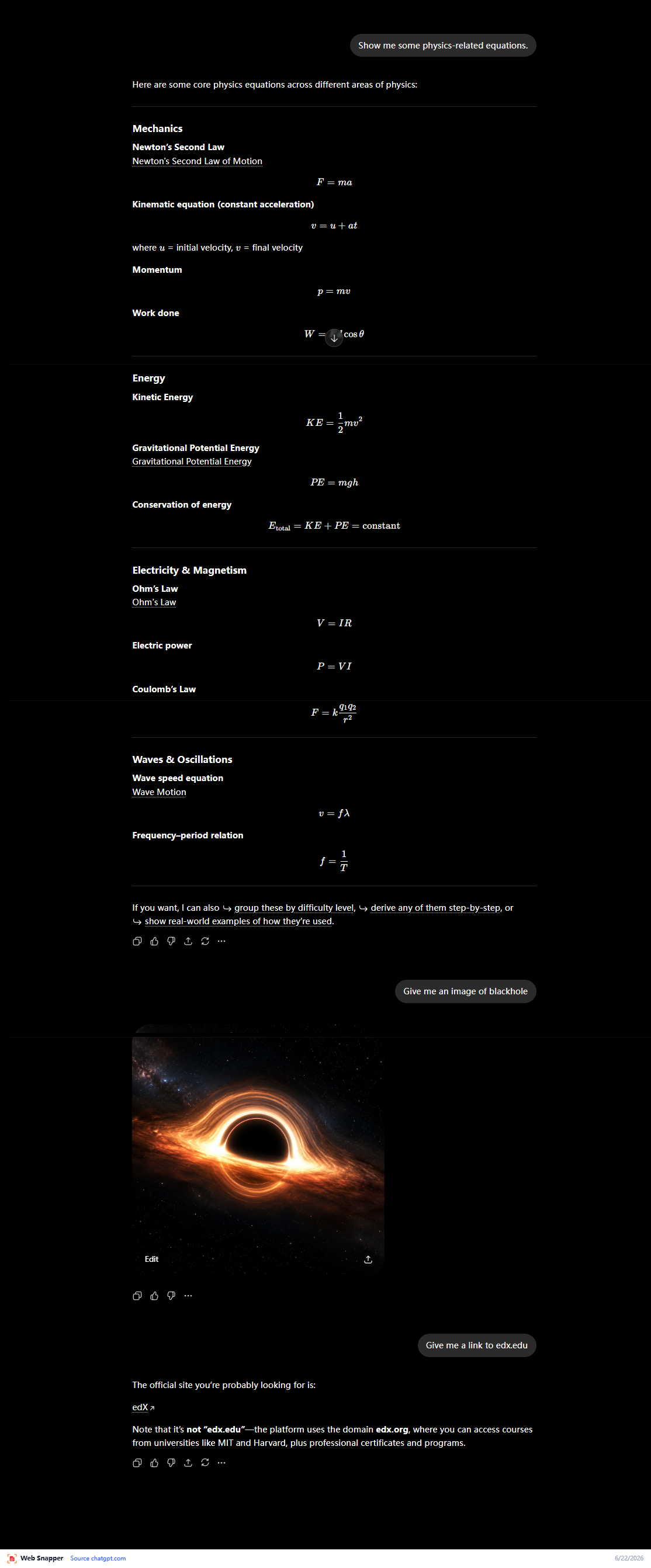
Pages that don't scroll normally
Some pages - long AI chat threads, app panels, dashboards - don't scroll the page body itself; an inner panel scrolls instead. Naive tools capture only the visible slice. Web Snapper's inner-scroll capture detects the scrolling container and captures it in full, so the entire thread or panel ends up in the image.
If you only need part of the page, use region capture instead: drag to select any area and save just that region as a PNG.
Tips for a clean result
- Let it finish. Full-page capture scrolls the page to load everything; give it a moment on image-heavy pages so lazy-loaded images render before the shot.
- Collapse pop-ups first. Dismiss cookie banners or login prompts before capturing so they don't sit in the final image.
- Need selectable text or clickable links? A PNG is a flat image. If you want the text to stay searchable, save the page as a searchable PDF instead.
Everything stays on your device
Web Snapper does all of this locally in your browser. The page is never uploaded, and there's no account or cloud step - the capture happens on your machine and the file lands in your Downloads.
For the full reference on capture modes and options, see Full-page screenshots.