
How to Redact Sensitive Info Before Sharing a Screenshot
Truly remove private data before sharing a screenshot or PDF - and why blur and black-box overlays can still leak what you hid.
You're about to share a screenshot - a bug report, an invoice, a support ticket - and there's a name, an email, an account number, or a balance you don't want anyone to see. The dangerous mistake is covering that data instead of removing it. Here's how to redact for real.
Why blur and black boxes leak
It feels safe to drag a black rectangle or a blur over the sensitive part. Often it isn't:
- Blur is reversible. Pixelation and blur are mathematical filters. With the right tools, blurred text - especially short, predictable strings like numbers - can be reconstructed and read.
- Overlays sit on top of the data. In many formats, a black box is just a shape drawn above the original content. The underlying text or image is still in the file. In a PDF, it can sit in a separate layer; in some web exports, the real value is still in the page source. Move the box, or open the file in the right viewer, and the secret is back.
- It's still on the page. If you hide an element with styling rather than deleting it, a copy of the page can still contain the original text.
The only reliable approach is to make the sensitive content not exist in the file you share.
The safe way: true redaction with Web Snapper
Web Snapper redacts on the page before it exports, and its redaction genuinely removes content rather than masking it.
- Open the page with the sensitive information.
- Click the Web Snapper icon and open the on-page editor.
- Select the sensitive text or image and choose redact - black it out, mosaic it, or delete the element entirely.
- Export to PNG, PDF, HTML, or Markdown.
When you redact text, it is truly removed from the page (the DOM) - not hidden behind a blur or an overlay that could leak in the export. Whatever you redact is gone from every format Web Snapper produces, because the redaction is baked into the export itself.
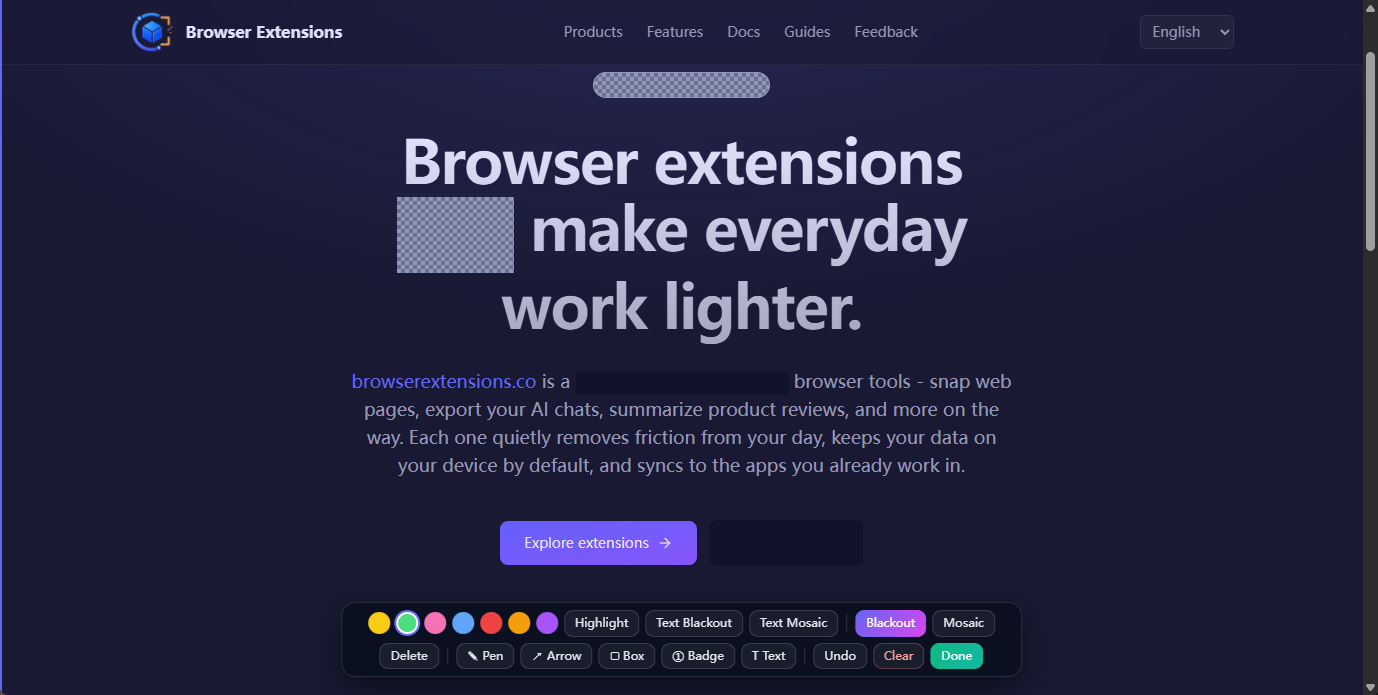
A safe redaction checklist
- Redact, don't draw. Use the redaction tool, not a freehand black rectangle from a generic image editor.
- Catch everything. Email addresses, account and card numbers, names, addresses, internal URLs, and avatars all count - scan the edges and headers, not just the obvious field.
- Verify the export, not just the screen. Open the finished file and try to select or search for the hidden text. With true redaction, there's nothing there to find.
- Mind the metadata too. Filenames and surrounding context can give away as much as the page itself.
Annotations and redactions ship together
Anything else you mark up - highlights, notes, arrows, numbered badges - is baked into the same export alongside your redactions, so the file you share is exactly what you reviewed. Nothing hidden, nothing extra.
Nothing leaves your device
Redaction happens locally in your browser. The original, un-redacted page is never uploaded - there's no cloud step where the full data could be exposed - and the cleaned file saves straight to your Downloads.
For redaction modes and how content is removed, see Redact sensitive content.