
How to Convert a Web Page to Markdown
Turn any article or selected region into clean Markdown for Obsidian, Notion, or VS Code - with images kept as real files, not flattened.
Markdown is the lingua franca of notes and knowledge bases. If you keep an Obsidian vault, a Notion workspace, or docs in VS Code, dropping a web article in as clean Markdown is the fastest way to make it yours - searchable, editable, and future-proof. Here's how to get there without the manual cleanup.
Why copy-paste makes a mess
The instinct is to select the article and paste it into your notes app. It rarely goes well:
- Junk comes along. Navigation, "related posts," cookie notices, and share buttons get pasted right alongside the content.
- Structure breaks. Headings flatten, lists lose their nesting, and code blocks lose their formatting.
- Images become a problem. They paste as broken links or get embedded inconsistently - and they still point back at the original site.
You end up spending more time cleaning up than reading.
The clean way: export to Markdown with Web Snapper
Web Snapper converts a page - or just a region you select - into clean, structured Markdown ready to paste into your note app.
- Open the article you want to capture.
- Click the Web Snapper icon.
- Choose Markdown export. To capture only part of the page, use region capture and select the area first.
- Save the Markdown file (and its images) to your Downloads folder.
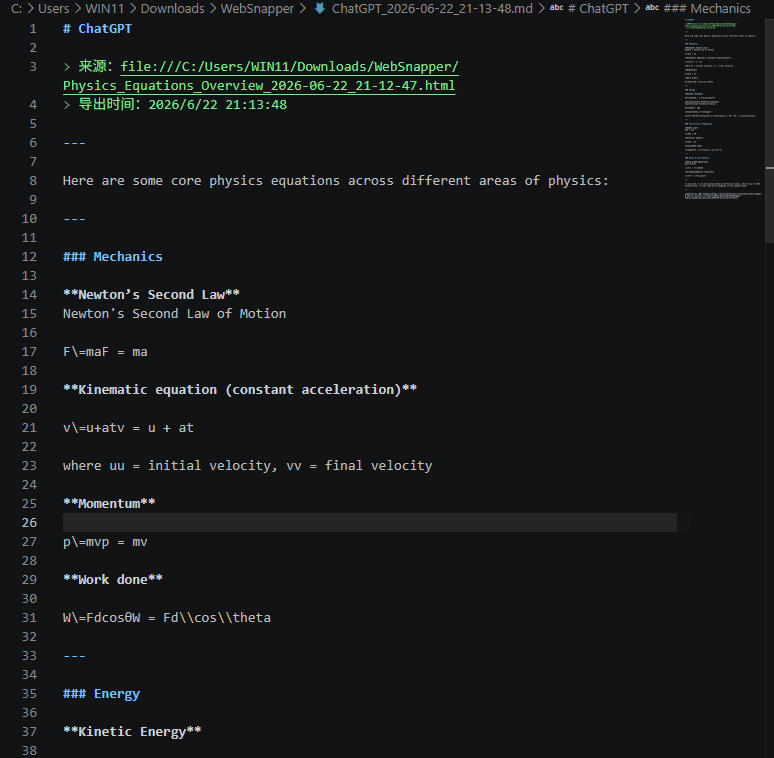
Headings, lists, links, and code blocks come across as real Markdown structure. And crucially, real images are referenced as files, not flattened into a screenshot - so they stay as actual images you can keep, move, or re-link in your vault.
Drop it into your tools
- Obsidian. Move the Markdown file and its images into your vault; links and headings render immediately, and it's fully searchable alongside your other notes.
- Notion. Import the Markdown file and Notion rebuilds the blocks - headings, lists, and code.
- VS Code. Open it as plain
.mdand edit or commit it like any other doc.
Cleaner input, cleaner output
For the best result, switch on Reading mode before exporting. It strips ads, sidebars, and clutter down to the article itself, so the Markdown you get is just the content - no leftover navigation to delete by hand.
If you'd rather preserve the page's exact look instead of converting it to text, save a single-file HTML snapshot or a full-page screenshot.
Local and private
The conversion runs in your browser. The page isn't sent to a server, there's no account, and the files save straight to Downloads.
For supported elements, region export, and how images are handled, see Export to Markdown.