
Export formats
Export to Markdown
Convert any web page or selected region to clean, semantic Markdown with Web Snapper — ready for Obsidian, Notion, and VS Code, with images kept as real files.
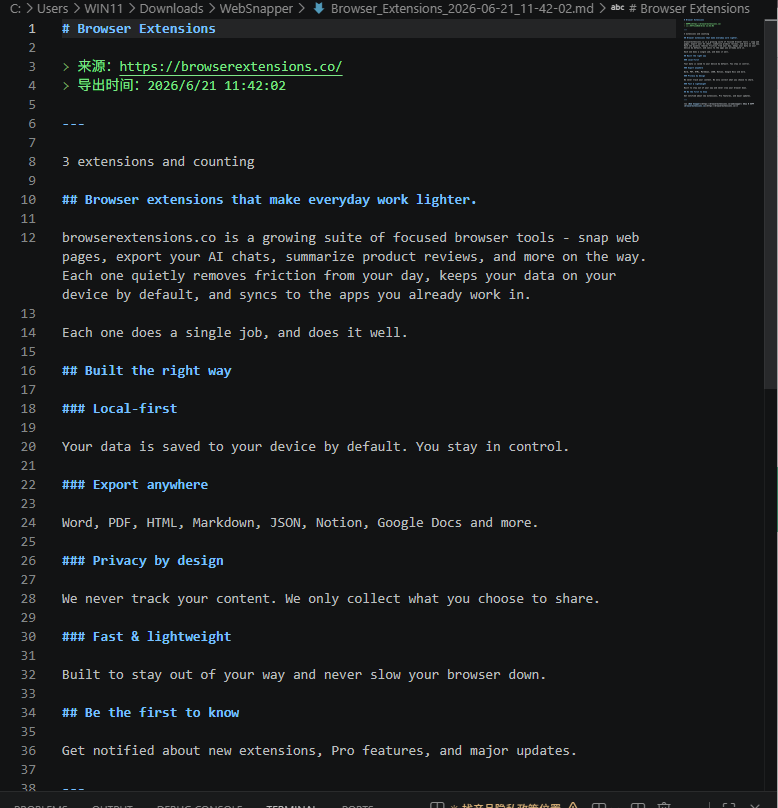
When a page is destined for your notes rather than your files, you want text you can edit, not an image you can only look at. Web Snapper converts a whole page — or just a region you select — into clean, semantic Markdown that drops straight into the tools you already write in.
Export a page to Markdown
- Open the page you want to convert.
- Click the Web Snapper icon.
- Choose the Markdown format.
- Save the file, or paste it into your notes app.
Clean, semantic Markdown
Web Snapper reads the structure of the page and turns it into real Markdown — headings stay headings, lists stay lists, and links stay links. The output is clean and portable, so it lands well in:
- Obsidian — drop it into a vault as a new note.
- Notion — paste it in and keep the formatting.
- VS Code — edit it as a plain
.mdfile like any other.
Because it's text, you can edit, reorganize, or fold it into a larger document however you like.
The whole page, or just a region
You don't have to take everything. Capture the full page when you want the complete article, or drag to select a single region — a table, a section, one answer in a long thread — and export just that part to Markdown. It's the fastest way to lift a useful chunk out of a busy page without the surrounding clutter.
Images stay real
This is where Markdown beats a screenshot for note-taking: real images are referenced as files, not flattened into one big picture. You keep the actual image alongside editable text, so the diagram or chart stays usable in your notes instead of being frozen into a screenshot you can't pull apart.
Related
- Want a faithful, frozen copy of the page? See Single-file HTML.
- Need a portable, printable document? See Searchable PDF.