
Export formats
Export AI Chats as Images (PNG)
Save an AI chat as a PNG image - quick visual sharing and screenshots of your conversations.
Export to PNG when you want a single image of the conversation - handy for sharing a visual snippet, dropping into a slide, or posting a screenshot without the surrounding app interface.
Export a conversation to PNG
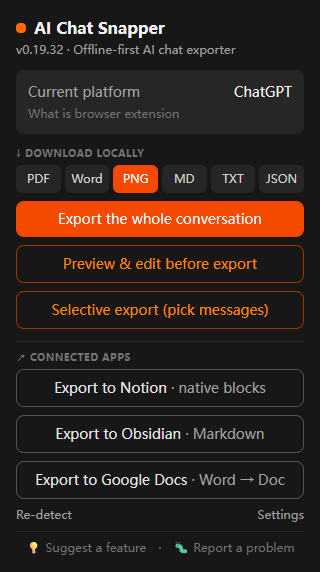
- Open the conversation in any supported assistant.
- Click the AI Chat Snapper icon.
- Choose PNG.
- Save the image.
What the PNG includes
The image captures the conversation as a clean, rendered document - just the messages, headings, lists, and code, without the sidebar or browser chrome you'd get from a manual screenshot.
Long conversations
A very long chat is automatically split into several full-width images, numbered in order (name-1.png, name-2.png, and so on). Each piece keeps the same width and sharpness, so the text stays clear instead of being squeezed into one narrow strip. For extremely long conversations, AI Chat Snapper saves up to ten images and suggests using PDF or Word for the rest.
PNG vs. PDF
A PNG is an image (or a set of images for a long chat), best for quick visual sharing. A PDF is a single multi-page document, better for long conversations and printing.
Related
- For editable text instead of an image, see Export to Markdown.