
Export formats
Export AI Chats to Word
Save an AI chat as an editable Word document — export ChatGPT or Claude conversations to .docx.
Export to Word (.docx) when you want to keep editing the conversation - reformatting, trimming, or folding it into a larger document before you share it.
Export a conversation to Word
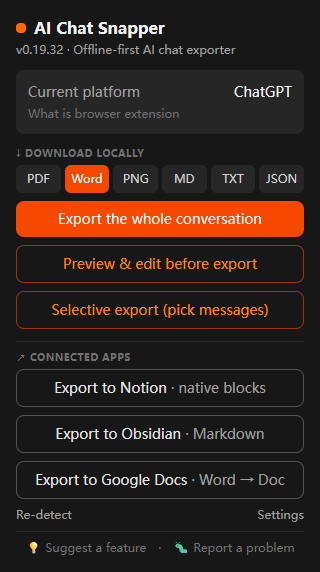
- Open the conversation in any supported assistant.
- Click the AI Chat Snapper icon.
- Choose Word.
- Save the
.docxfile, or send it to Google Docs.
What the Word file includes
The document keeps headings, lists, and code blocks as editable text, so you can restyle it with your own template or paste sections elsewhere. Unlike copy-paste from the chat window, formatting and structure survive the export.
Word vs. PDF
Both formats keep your text selectable and editable. Choose Word when you expect heavier formatting changes — restyling, restructuring, or merging into a larger document — since Word's editing tools are more convenient for that than a PDF editor. Choose PDF when the conversation is essentially final and you want a fixed, portable document that looks the same everywhere.
Related
- Send it straight to the cloud with Cloud Storage.