
Settings
AI Chat Snapper Settings
Tailor AI Chat Snapper: language, file names, default format, PDF layout, reasoning export, and Notion / Obsidian destinations.
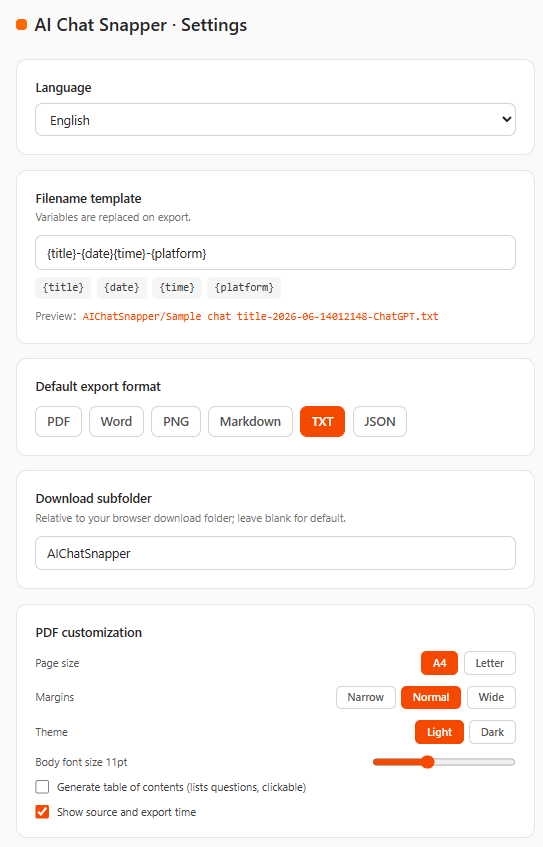
The settings page lets you tailor how AI Chat Snapper names, formats, and delivers your exports. Open it from the extension's options (right‑click the AI Chat Snapper icon → Options, or use the gear/settings link in the popup). The page header reads AI Chat Snapper · Settings.
Changes are saved automatically as you make them; a brief Saved confirmation appears. To revert everything, use Reset to defaults at the bottom of the page.
Language
Choose the interface language for the extension. Follow system matches your browser's language; otherwise pick one of the supported languages (English, 简体中文, العربية, 日本語, 한국어, Español, Français, Deutsch, Português, Русский). Each language is shown in its own name in the dropdown.
Filename template
Controls the name given to exported files. Variables are replaced on export. Click a variable chip to insert it into the field, and watch the Preview line update with a real example.
Available variables:
{title}— the conversation title{platform}— the source assistant (e.g. ChatGPT, Claude){date}— the export date{time}— the export time{model}— the model used, when available
For example, {title}-{date}-{platform} produces a name like My chat-2026-06-13-ChatGPT. The matching file extension (.pdf, .docx, .png, .md, .txt, .json) is added automatically based on the format.
Default export format
Sets which format is pre‑selected when you open the popup. Choose one of PDF, Word, PNG, Markdown, TXT, or JSON. You can still pick a different format at export time; this only sets the default.
Download subfolder
A folder inside your browser's download directory where exports are placed. The path is relative to your browser download folder; leave blank for default. The default is AIChatSnapper.
PDF customization
These options apply only to PDF exports.
- Page size — A4 or Letter.
- Margins — Narrow, Normal, or Wide.
- Theme — Light or Dark.
- Body font size — the size of body text, adjustable from 8 to 16 pt (default 10 pt). The current value is shown next to the label.
- Generate table of contents — lists questions, clickable. Adds a contents list of your questions with links that jump to each one. Off by default.
- Show source and export time — adds a small header noting where the conversation came from and when it was exported. On by default.
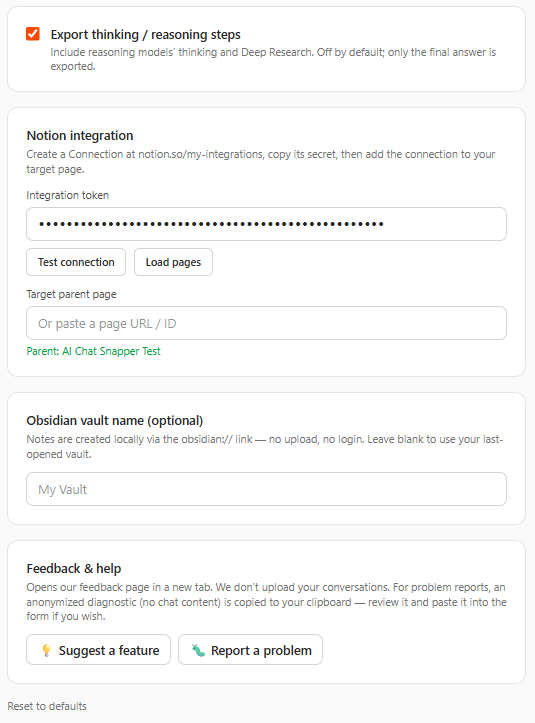
Export thinking / reasoning steps
Include reasoning models' thinking and Deep Research. When enabled, the export includes the intermediate reasoning that supported models produce, in addition to the final answer. Off by default — only the final answer is exported.
Notion integration
Send exports straight to a page in your Notion workspace. Create a Connection at notion.so/my-integrations, copy its secret, then add the connection to your target page.
- Integration token — paste the secret from your Notion connection (starts with
ntn_…). It is stored as a password field. - Test connection — verifies the token. On success the connected workspace name is shown (e.g. Connected: My workspace).
- Load pages — fetches the pages your connection can access.
- Target parent page — choose where new exports are created. You can pick a loaded page, or paste a page URL / ID directly. The selected page is shown as Parent: ….
Remember to share the target page with your connection in Notion, or it won't appear and exports will fail.
Obsidian vault name (optional)
Save exports as notes in your local Obsidian vault. Notes are created locally via the obsidian:// link — no upload, no login. Enter your vault name (e.g. My Vault), or leave it blank to use your last‑opened vault.
Feedback & help
Quick links to reach us. Opens our feedback page in a new tab. We don't upload your conversations. For problem reports, an anonymized diagnostic (no chat content) is copied to your clipboard — review it and paste it into the form if you wish.
- 💡 Suggest a feature — propose something you'd like to see.
- 🐛 Report a problem — tell us about an issue.
Reset to defaults
The Reset to defaults link at the bottom restores every setting on this page to its original value. Your saved settings are replaced, so use it only if you want a clean slate.
Related
- Export to PDF — where the PDF customization options take effect.
- Cloud Storage — more on Notion and other destinations.
- Getting Started — the basics of exporting.