
Introduction
Export Your First Conversation
Turn any AI chat into a clean file in a few clicks - your first export with AI Chat Snapper.
Once AI Chat Snapper is installed, exporting a conversation takes only a few clicks.
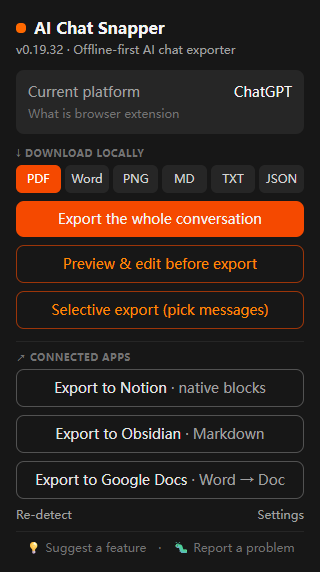
Export a conversation
- Open a conversation in any supported AI assistant - for example, ChatGPT.
- Click the AI Chat Snapper icon in your toolbar.
- Choose a format: PDF, Word, PNG, Markdown, TXT, or JSON.
- Save the file locally, or send it to Notion, Google Docs, or Obsidian.
That's it. The export keeps the structure of your chat - who said what, headings, lists, and code blocks all stay intact.
Choosing a format
The right format depends on what you'll do next:
- PDF - finished conversations to share, print, or archive.
- Word - when you want to keep editing.
- Markdown - for notes apps and knowledge bases.
- PNG - a quick image for visual sharing.
- TXT / JSON - plain text or structured data.
Each format has its own page under Export formats in the sidebar, starting with Export to PDF.
Next step
Want to change the default format, file names, or download folder? See Settings.