
Export formats
Export AI Chats to PDF
Save any AI chat as a clean, portable PDF — export ChatGPT, Claude, or Gemini conversations to PDF.
PDF is the most portable export format: it looks identical on every device, prints cleanly, and is easy to attach to an email or a ticket. Use it when a conversation is finished and you want to keep or share it as-is.
Export a conversation to PDF
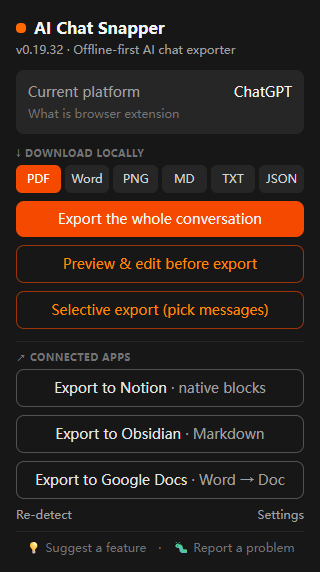
- Open the conversation in any supported assistant.
- Click the AI Chat Snapper icon.
- Choose PDF.
- Save the file, or send it to a destination.
What the PDF includes
The PDF preserves the structure of the chat: message boundaries (who said what), headings, lists, and code blocks all stay formatted. Long conversations are paginated cleanly instead of being cut off.
PDF vs. browser "Print to PDF"
To be fair, your browser's built-in Save as PDF is good. For a short conversation that fits on screen, the output is clean — sometimes great — and it needs no extra tools. If all you want is a quick, one-off PDF of a single page, it's a perfectly reasonable choice.
The trade-offs show up on longer or richer chats. Because the browser prints what's currently rendered on the page, you can sometimes run into:
- Missing content — chat apps only render the part of a long conversation that's scrolled into view, so sections can be left out of the print.
- Stray interface controls — a floating message toolbar or button captured mid-answer (see below).
- No structure — turns aren't labeled, and there's no source link or export time.
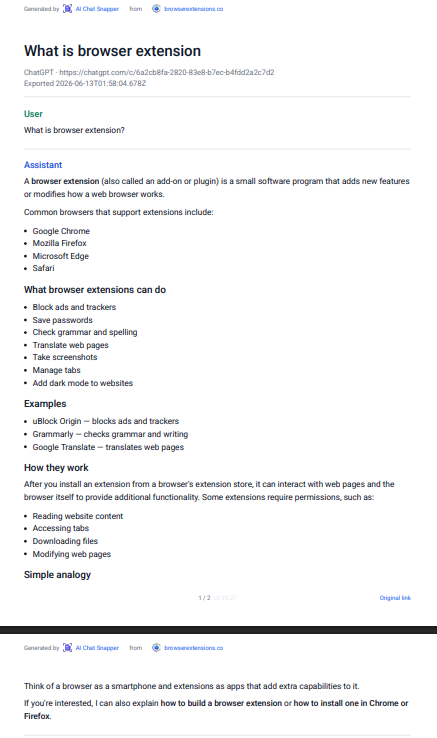
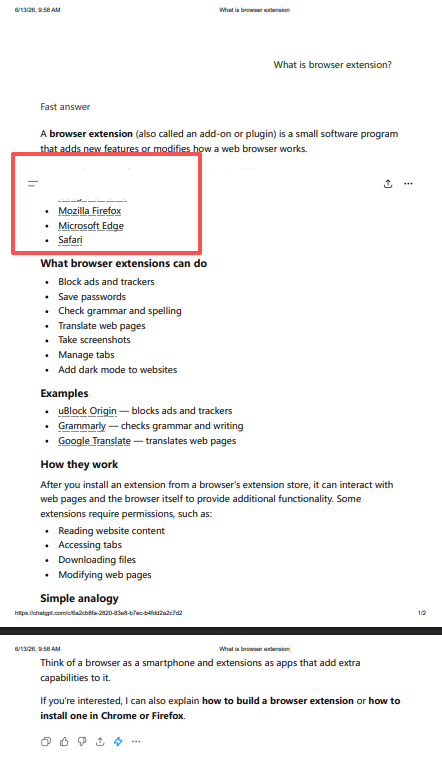
AI Chat Snapper is built for everything beyond that quick one-off:
- Export only what you need. Select specific messages and export just those — handy for sharing a single answer or trimming a long thread. Browser printing always takes the whole visible page.
- Complete by default. It reads the full conversation, so even long chats are captured end to end, not just what's on screen.
- Reads like a document. Labeled User / Assistant turns, real headings, lists, tables, and fenced code blocks — no interface chrome or stray buttons.
- Traceable. Every page carries the source link and export time, so you always know where an export came from.
- Lighter files. Text-based output instead of a rasterized screenshot.
- Consistent everywhere. The same clean result across ChatGPT, Claude, Gemini, and every other supported assistant.
Related
- Prefer an editable document? See Export to Word.
- Want plain notes instead? See Export to Markdown.