
Organize & settings
Settings
Configure Web Snapper: file naming, PDF paper size and orientation, and the interface language — choose from 10 languages, all on-device.
Web Snapper's settings let you tailor how captures are named, how your PDFs are laid out, and which language the interface speaks. Open the settings page from the extension, adjust what you need, and your choices apply to future captures.
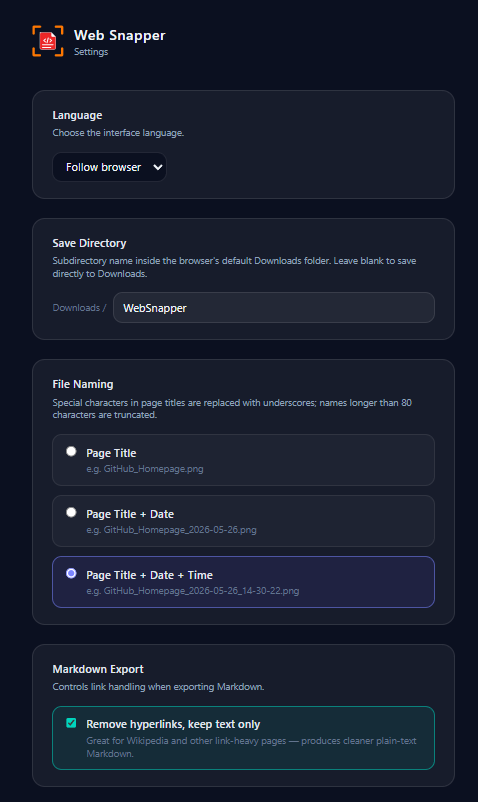
File naming
Control how Web Snapper names the files it saves. Set up a naming pattern once and every capture follows it, so your screenshots, PDFs, HTML files, and Markdown exports land in your Downloads folder with consistent, predictable names — no manual renaming required.
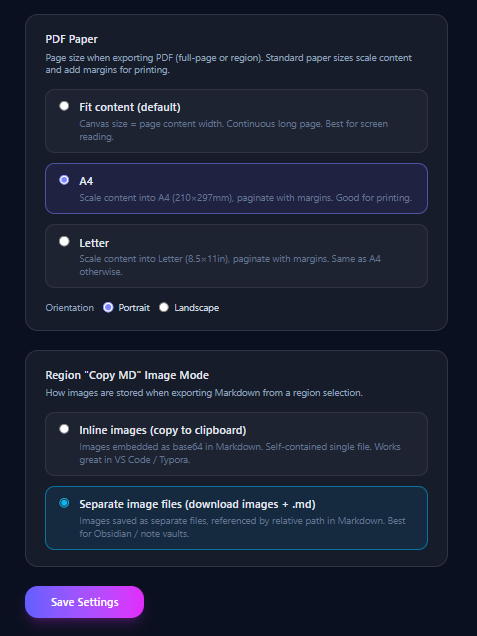
PDF paper size and orientation
These options shape how your PDF exports are laid out.
- Paper size — choose A4, Letter, or fit-to-content. Fit-to-content sizes the page to the capture itself, which is handy for long, scrolling pages that don't map neatly onto a standard sheet.
- Orientation — choose portrait or landscape to match the shape of what you're capturing.
Pick A4 or Letter when you plan to print or share a standard document, and fit-to-content when you want a faithful, uncropped copy of the page.
Interface language
Web Snapper ships in 10 languages, so you can use it in the language you're most comfortable with:
- English
- 中文
- 日本語
- 한국어
- Español
- Français
- Deutsch
- Português
- Русский
- العربية
Choose your preferred language and the interface updates to match.
Saved on your device
Like everything in Web Snapper, your settings stay local. They're stored on your device, never uploaded, and no account is needed — see the privacy policy for the full picture.