
Capturing pages
Reading Mode
Strip ads, sidebars, and clutter with Web Snapper's Reading Mode for a clean article view before you capture or export to Markdown or PDF.
Web pages are noisy: ads, sidebars, cookie banners, related-article rails, and newsletter pop-ups all compete with the thing you actually came to read. Reading Mode clears it all away so you capture the article, not the clutter.
Clean up the page first
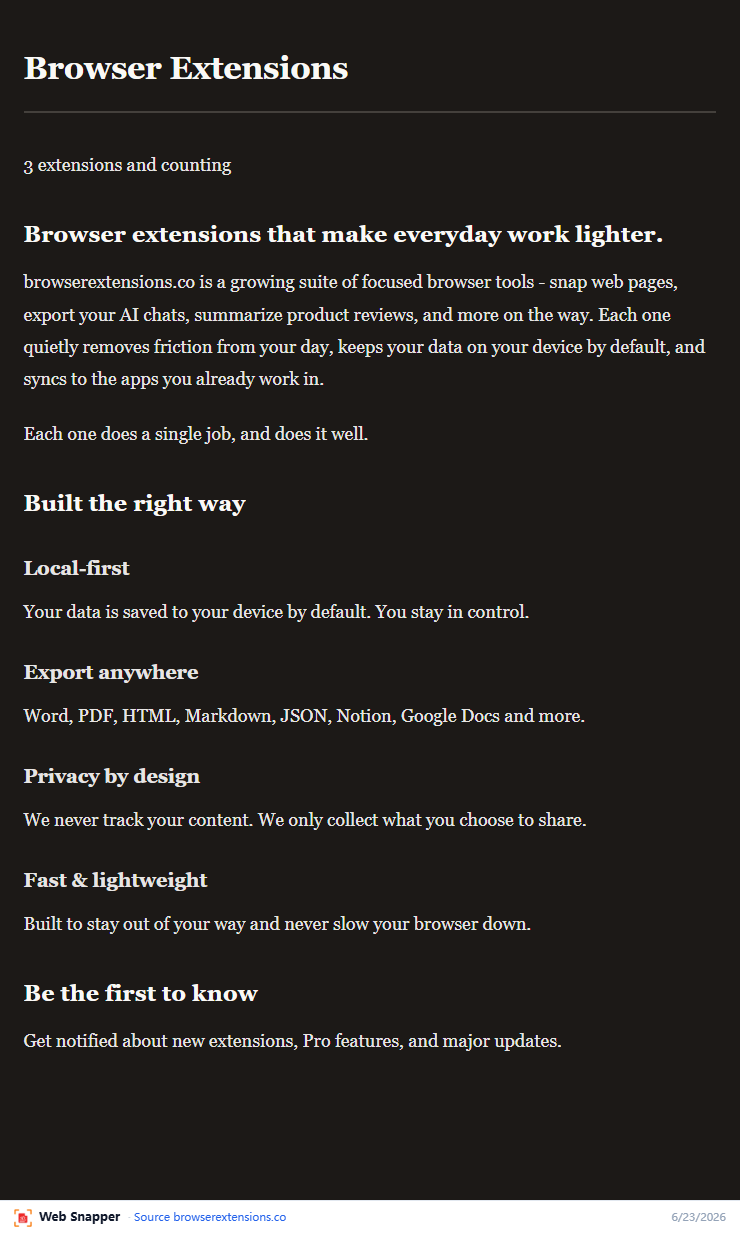
- Open the article you want to keep.
- Click the Web Snapper icon.
- Turn on Reading Mode.
- Capture or export the cleaned-up view.
Reading Mode pulls out the core article and drops the surrounding noise — ads, sidebars, and interface clutter — leaving a clean, focused page.
Why it helps
Capturing or exporting a busy page means carrying all that clutter into your saved copy. Reading Mode removes the distractions first, so what you save is just the content: easier to read now, and easier to revisit later.
Pairs well with Markdown and PDF export
Reading Mode is especially handy right before an export:
- Markdown — with the clutter gone, the converted Markdown stays clean and focused, perfect for Obsidian, Notion, or any note app. Real images are referenced as files rather than flattened into a screenshot.
- Searchable PDF — produce a tidy, document-like PDF of just the article, with selectable text and clickable links.
Switch on Reading Mode, then export — you get a faithful copy of the writing without the surrounding page furniture.
Related
- Save the cleaned article as notes — see the Region & Visible-area Capture guide for Markdown export.
- Want the page exactly as it looks? Use Full-page Screenshots instead.
- Learn more about Web Snapper on the product page.