
Capturing pages
Region & Visible-area Capture
Capture any region or the visible screen with Web Snapper — drag to select an area, then save it as PNG, searchable PDF, or clean Markdown.
Sometimes you don't want the whole page — just one chart, one paragraph, or whatever happens to be on screen right now. Web Snapper gives you two quick ways to grab exactly that.
Region capture
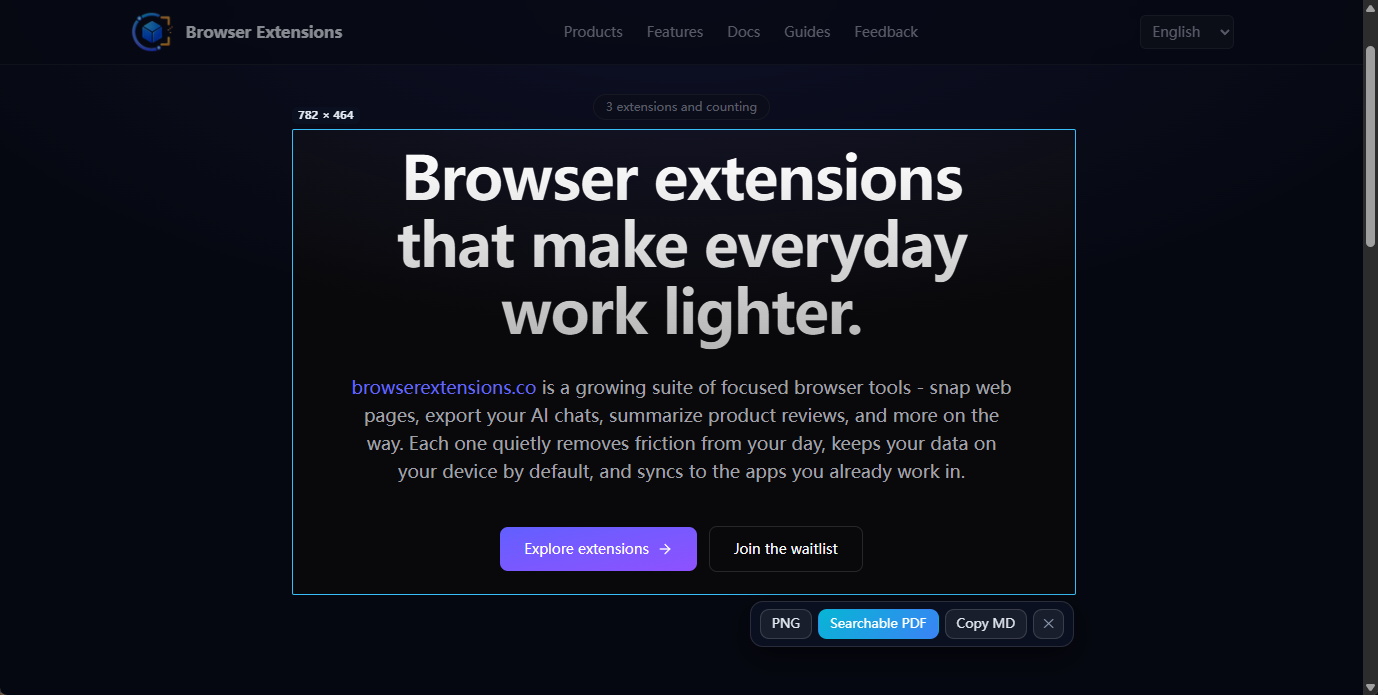
- Click the Web Snapper icon.
- Choose region capture.
- Drag to select the area you want.
- Save the selection.
A region capture isn't limited to an image. You can save the selected area as:
- PNG — a clean image of just that region.
- Searchable PDF — the region as a portable document with selectable text.
- Markdown — the region converted to clean Markdown for your notes.
Use region capture when you want a specific part of the page and nothing else around it.
Visible-area capture
The visible-area screenshot is the fastest option: it captures exactly what's on your screen right now, in one click — no scrolling, no selecting.
- Click the Web Snapper icon.
- Choose the visible-area capture.
- Save the screenshot.
Reach for this when what you need already fits in the viewport and you just want it captured immediately.
Which one should I use?
- Visible area — quickest grab of what's already on screen, as-is.
- Region — when you want to trim down to one specific part of the page, and possibly export it as PDF or Markdown rather than an image.
- Full page — when the content you need runs past the bottom of the screen. See Full-page Screenshots.
Related
- Need the whole scrolling page instead? See Full-page Screenshots.
- Capturing a panel with its own scrollbar? See Inner-scroll Capture.