
Capturing pages
Inner-scroll Capture
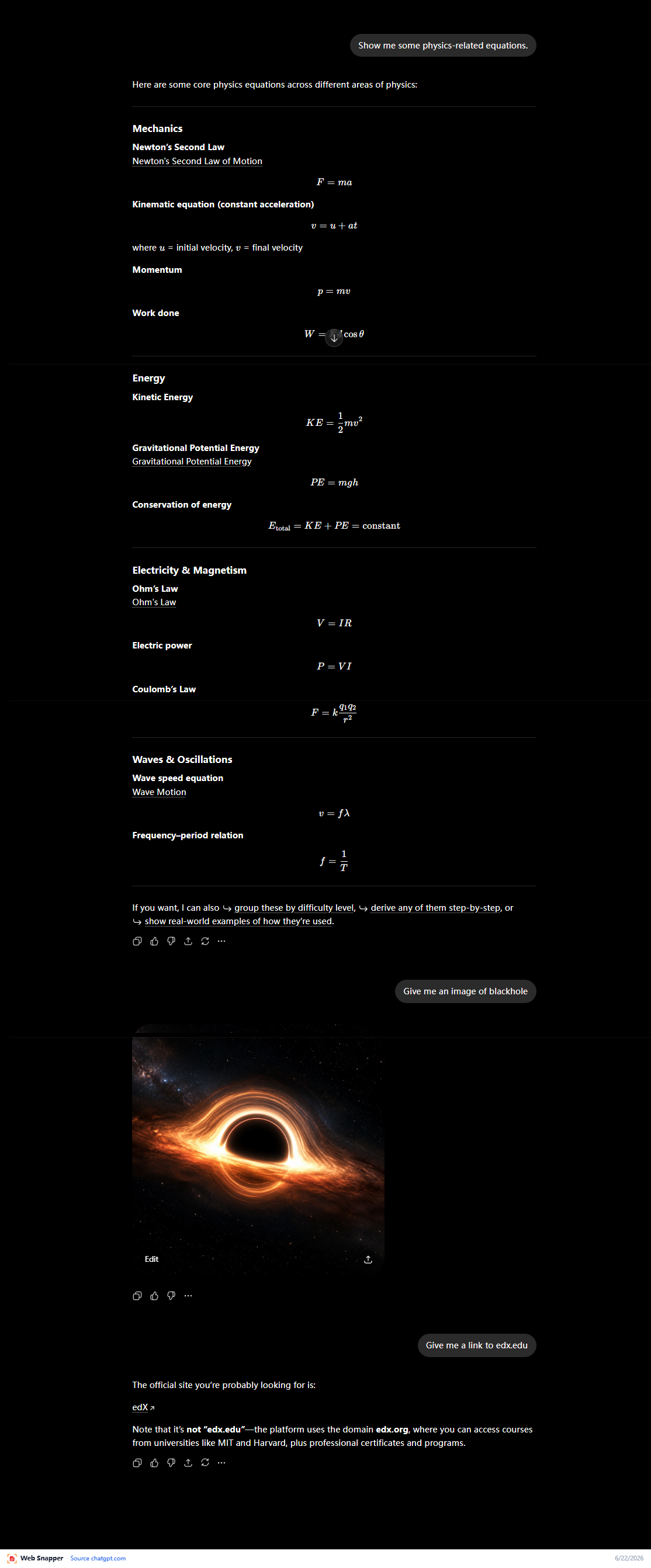
Capture content inside scrolling panels with Web Snapper — grab long AI chat threads and app side panels in full, not just what's on screen.
Some content doesn't live in the main page body — it lives inside a panel that scrolls on its own. Long AI chat threads and app side panels are the classic example. Inner-scroll capture grabs that content in full.
Why a normal full-page capture misses these
A full-page capture works by scrolling the page from top to bottom. But on apps like AI chat tools, the page itself doesn't scroll — the conversation lives in an inner panel with its own scrollbar, while the rest of the page stays put.
When the page body never moves, a regular full-page capture only sees the slice of the thread that's currently visible. Everything above and below stays hidden inside the panel and gets left out.
Capture a scrolling panel in full
- Open the page with the scrolling panel — for example, a long AI chat thread.
- Click the Web Snapper icon.
- Choose inner-scroll capture.
- Save the result.
Web Snapper scrolls inside the panel rather than the page, captures the whole thing section by section, and stitches it into one complete capture.
When to use it
- Long AI chat threads where the conversation scrolls but the page around it doesn't.
- App side panels — dashboards, inspectors, and chat sidebars with their own scroll area.
- Anytime a normal full-page capture comes back short and you can see there's more content hidden inside a scrolling box.
Related
- For ordinary pages that scroll normally, use Full-page Screenshots.
- Just need part of what's visible? See Region & Visible-area Capture.